Mirage Console
In-game command console and debug tools for Unity.

An in-game console for Unity: turn a C# method into a command with one attribute.
Run it from a command line, a button or your own code, read every message your game logs, keep an eye on performance, and send the logs of a bug to your team, all inside the running game, in the Editor and in your Development builds.
> @Enemy* heal 20
What you get
[Command] on a static method: its parameters become the command's, the help is generated.
Commands on your objectsRun a method or a property of a component on the objects of the scene you name.
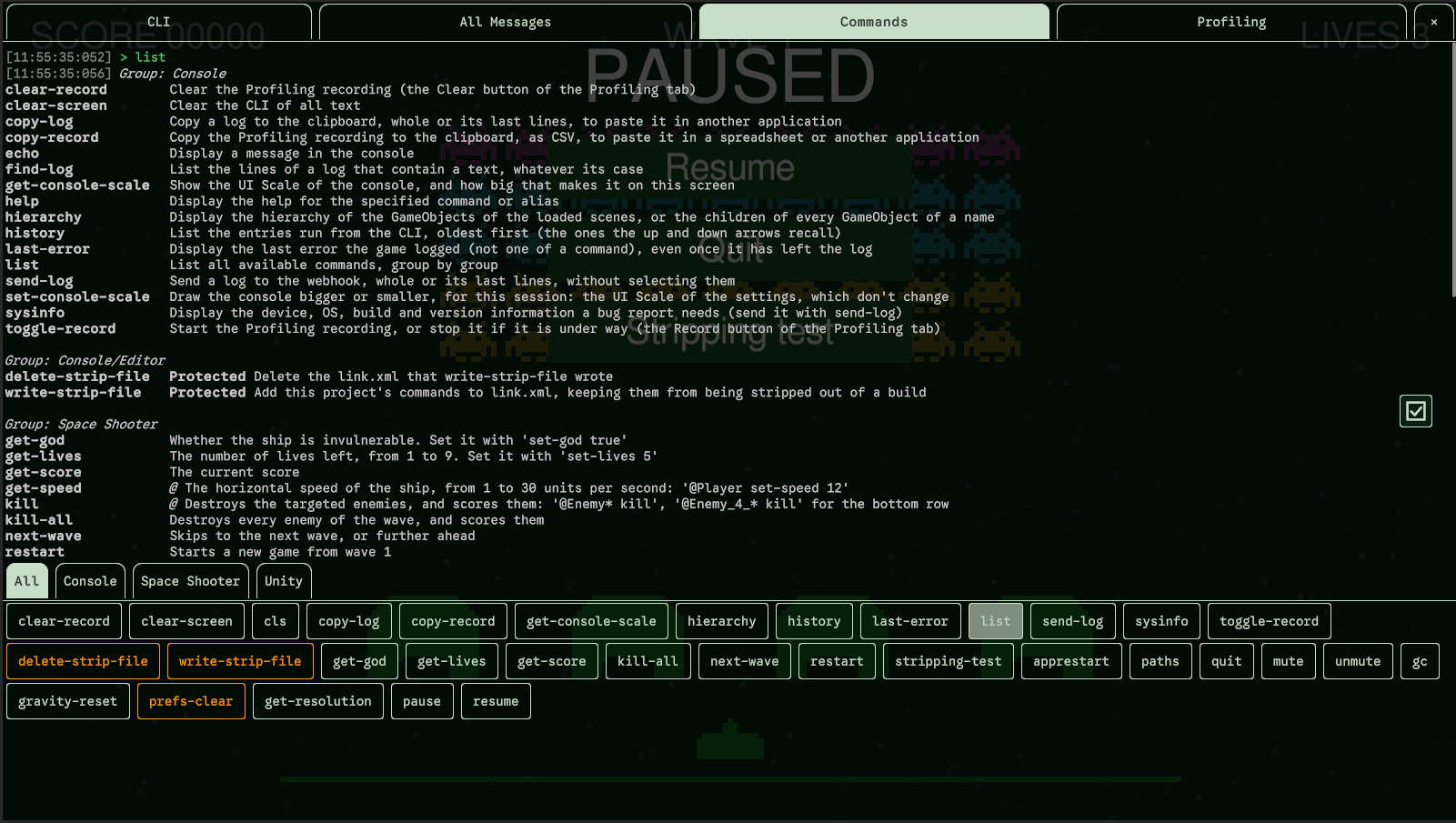
Four tabsCLI, All Messages, Commands (one-click buttons) and Profiling; reorder or hide them.
Every log, filteredEvery message of the game, from any thread, by severity and by tag.
Share logsCopy the lines of a bug, or send them to Slack, Discord or your own server with a message.
ProfilingFPS, frame time and memory at a glance, and a recording you can export as CSV.
Protected commandsAsk for a password before a command that can do harm.
Development onlyActive in the Editor and Development builds, compiled out of Release builds by default.
Requirements
- Unity 2022.3.62f3 or newer (the console is drawn with UI Toolkit at runtime).
- Any render pipeline: Built-in, URP or HDRP.
- The Legacy Input Manager, the Input System package, or both: the console detects which one to use. The Input System package is optional.
The Unity versions it is tested with, and what it doesn't do, are in Compatibility and limitations.
Tutorial: from install to your first command
This tutorial takes about ten minutes. You will install the package, open the console, find your way around its tabs, then write a command of your own and run it.
Step 1: Install the package
Install the package with the Package Manager:
- In Unity, open Window > Package Manager.
- In the list on the left, choose My Assets (called Packages: My Assets in older versions), then select Mirage Console.
- Click Download, then Install.
That's all the setup there is: the console works out of the box with its default settings. It has no
Resources folder and adds nothing to your scenes: it creates itself when the game starts.
Step 2: Open the console
- Open any scene and press Play.
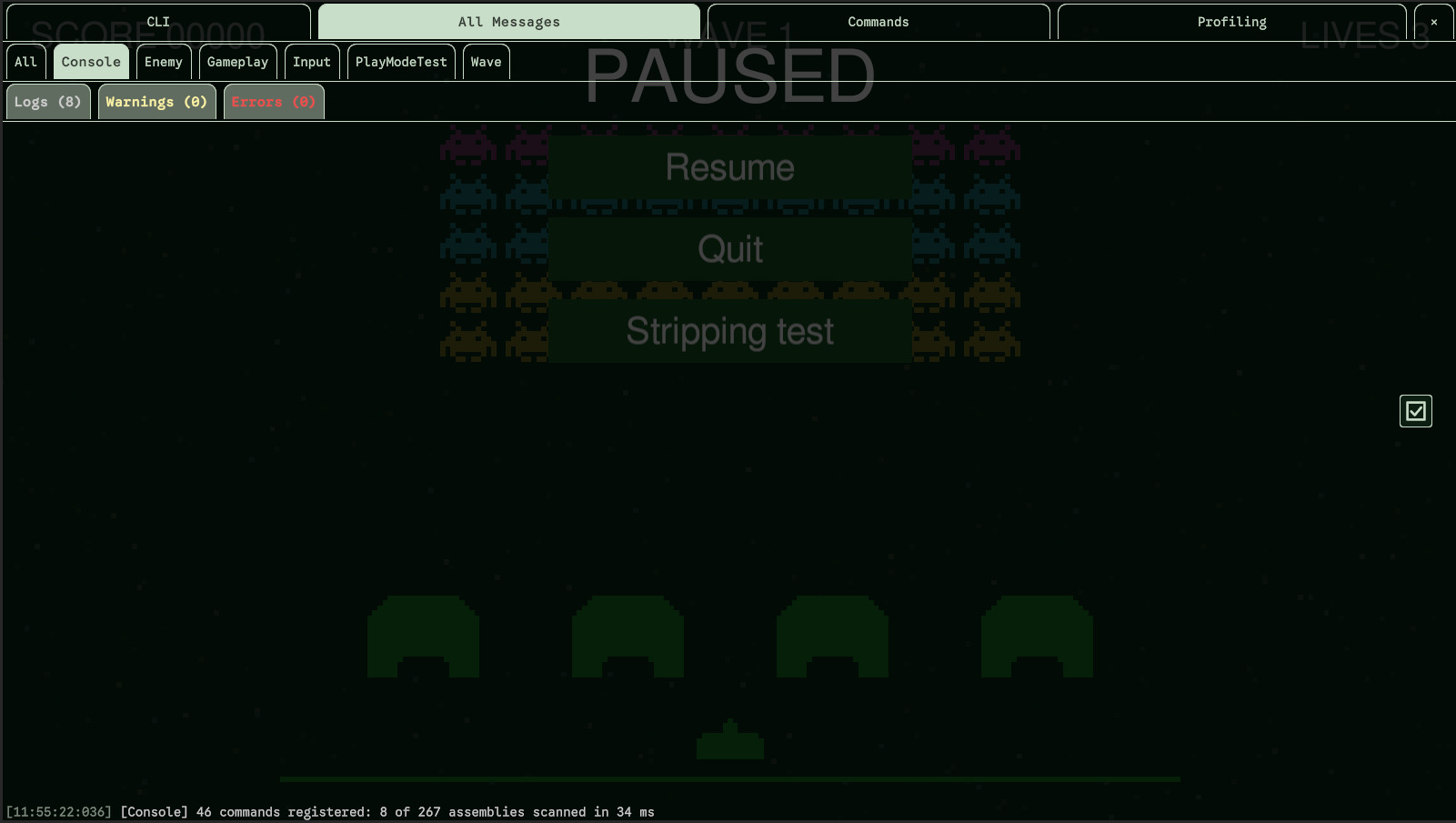
- Press F12: the console opens over the game. Press F12 again, or Esc, or click the × at the end of the tab bar, to close it.
Step 3: Find your way around
The console has four tabs. Click a tab to show it:

| Tab | What it is for |
|---|---|
| CLI | The command line: type a command, press Enter, read what it answers. More |
| All Messages | Every message your game logs (Debug.Log, warnings, errors, exceptions), filtered by severity and by tag. More |
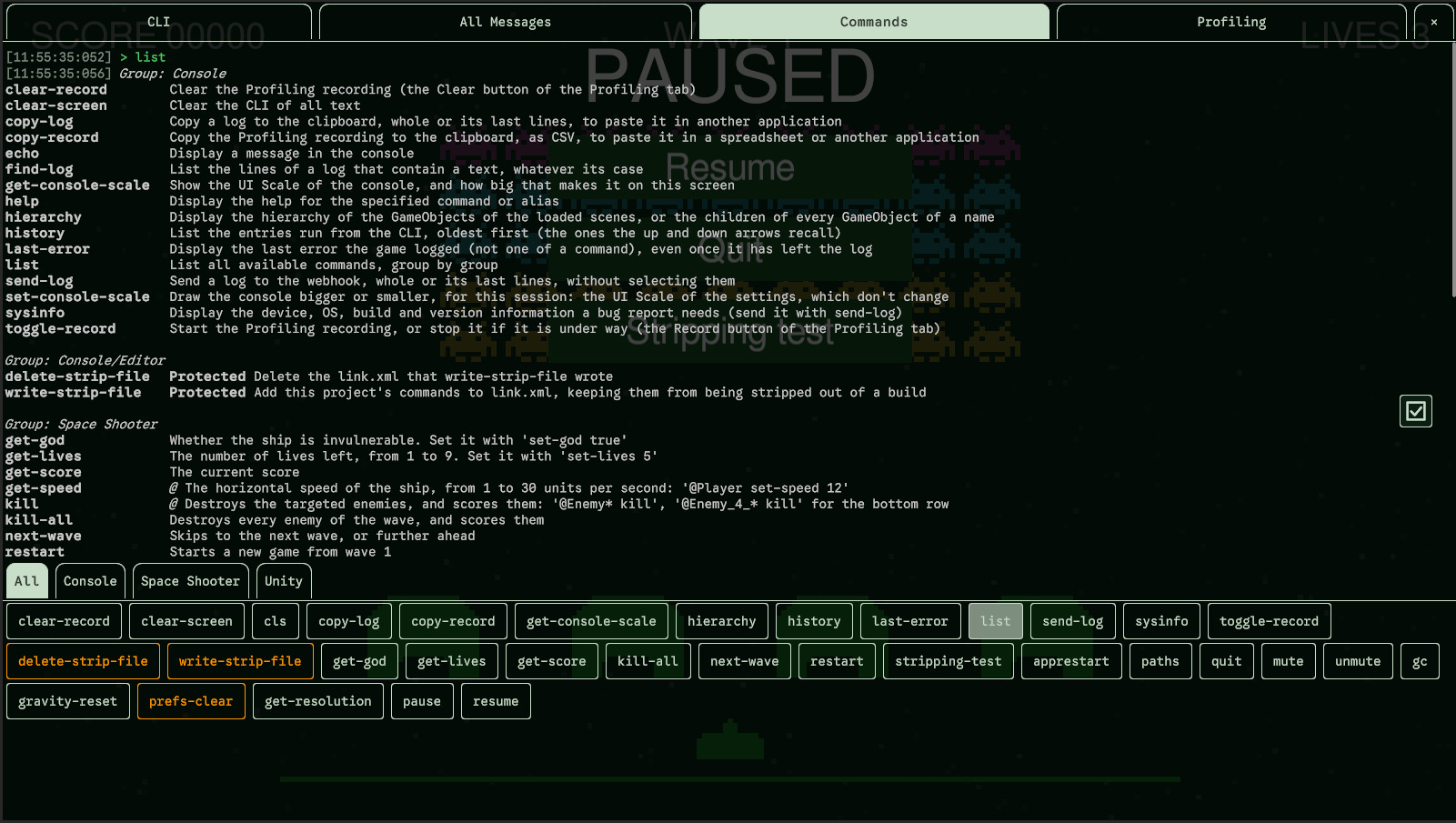
| Commands | A button for every command that needs no argument: one click runs it. More |
| Profiling | FPS, frame time, memory, and a recording you can copy as CSV. More |
Now try a few commands in the CLI tab. Type each line, then press Enter:
> list
> help echo
> echo "Hello from the console" -v warninglistlists every command, group by group, with what it does.help echoshows how to typeechoand what its parameters are.echowrites a message;-v warningwrites it as a warning.
Three keys make the command line fast:
- Tab completes what you are typing: type
hethen Tab to gethelp. - ↑ and ↓ bring back what you already typed.
- Enter runs the entry.
Step 4: Create your first command
A command is a static method with the [Command] attribute. Create a C# script in your
Assets folder, name it MyCommands.cs, and replace its content with:
using MI.Console;
using UnityEngine;

public static class MyCommands
{
    [Command("greet")]
    [CommandSummary("Say hello to someone")]
    static void Greet([ParamInfo("Who to greet")] string name = "world")
    {
        Debug.Log($"Hello, {name}!");
    }
}
What each line does:
using MI.Console;gives access to the attributes of the console.[Command("greet")]makes the method a command namedgreet. The method can be private or public.[CommandSummary]is the description thatlistandhelpshow.- The parameter
namebecomes a parameter of the command. Because it has a default value, it is optional, and it is given by its name:--name.[ParamInfo]describes it forhelp.
Step 5: Run it
Back in Unity, press Play, open the console and type:
> greet
Hello, world!
> greet --name Alice
Hello, Alice!
> help greet
greet [--name stringValue]
Say hello to someone
    name (text, default "world"): Who to greet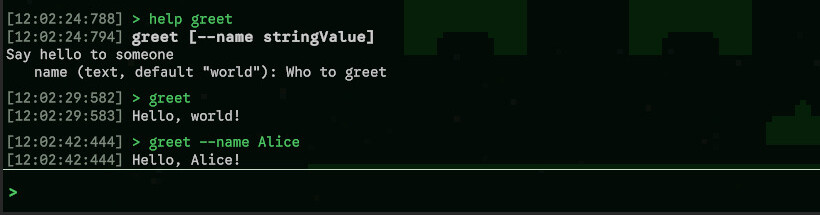
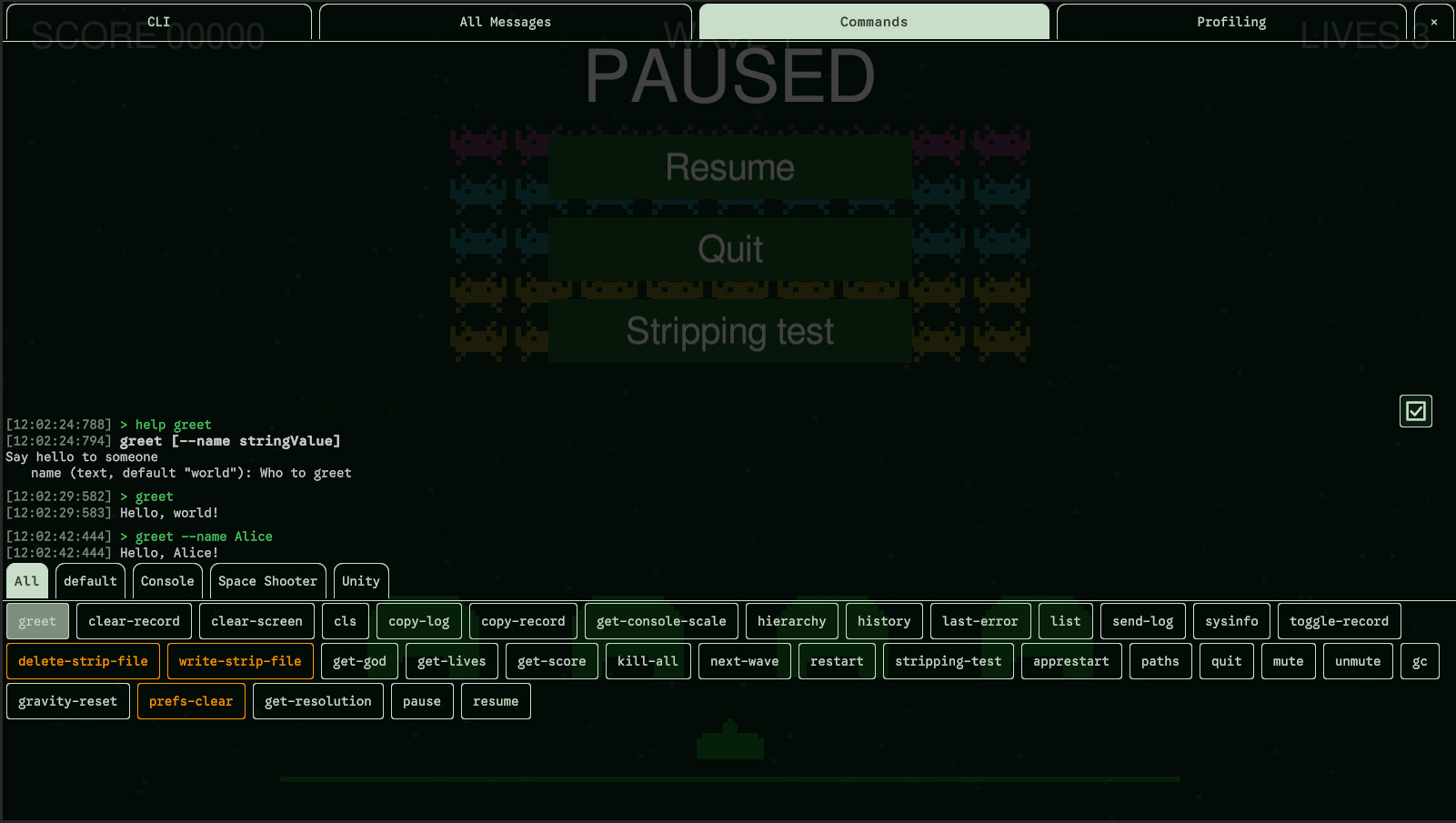
Because greet needs no argument, it also has a button in the Commands tab. Open that
tab and click greet: it runs as if you had typed it.
Where to go next
@Player heal 100: run a component's method on the objects of the scene.
Aliases and groupsShort forms of your commands, and groups to organize them.
SettingsKeys, colors, the order of the tabs, the webhook.
BuildsDevelopment builds, Release builds, and code stripping.
Share a bugSelect the lines that matter and copy or send them.