Built-in commands
The commands the console comes with.
The console comes with these commands, in the group Console. Type help and the name of
one of them to see its details in the console.
| Command | Does what |
|---|---|
list [--filter -f text] [--alias -a] [--group -g group] | List the commands, group by group, with their summary. -f keeps those whose name contains the text; -a adds the aliases and what they stand for; -g keeps a group and its subgroups (list -g Unity). |
help <command> | The syntax of a command, its summary and its parameters. For an alias, what it stands for, then the help of its command. |
echo <message> [--verbose -v level] | Write a message; -v is log, warning or error. Aliases: log, warning, error (warning "low memory"). |
clear-screen [--all -a] | Clear the CLI; --all clears All Messages too. Alias: cls. |
history [--clear -c] | List the entries you ran, numbered; --clear forgets them. |
find-log <text> [--tab -t all|cli] | List the lines that contain a text. See Finding a line. |
last-error [--trace -s] | The last error the game logged, even once it left the log; --trace adds its stack trace. |
hierarchy [--game-object -g name] [--show-parents -p] | The GameObjects of the loaded scenes as a tree. See below. |
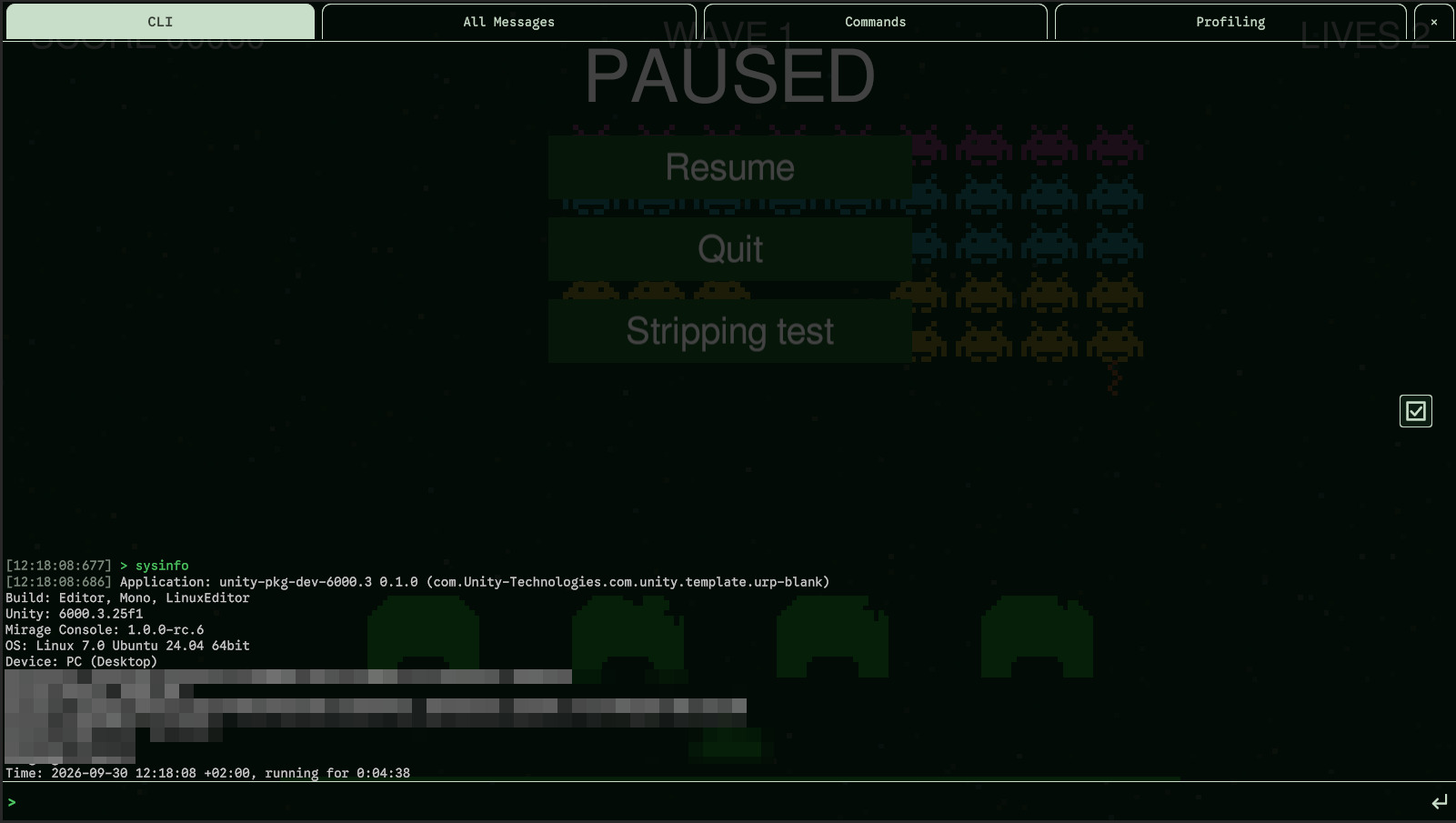
sysinfo | What a bug report asks for first: build, versions, OS, device, processor, memory, graphics, screen, quality level, language, time. |
copy-log [--tab -t all|cli] [--last -l n] | Copy a log to the clipboard. See Sharing. |
send-log [--tab -t all|cli] [--last -l n] [--message -m text] | Send a log to the webhook. See Sharing. |
toggle-record | Start or stop the Profiling recording. |
clear-record | Clear the Profiling recording. |
copy-record | Copy the Profiling recording, as CSV. |
get-console-scale | The UI Scale of the console, and how big that makes it on this screen. |
set-console-scale <scale> | Draw the console bigger or smaller, from 0.5 to 2, for this session: the UI Scale setting doesn't change. |
Two more, write-strip-file and delete-strip-file, are protected and only exist in the
Editor: see Code stripping.
hierarchy
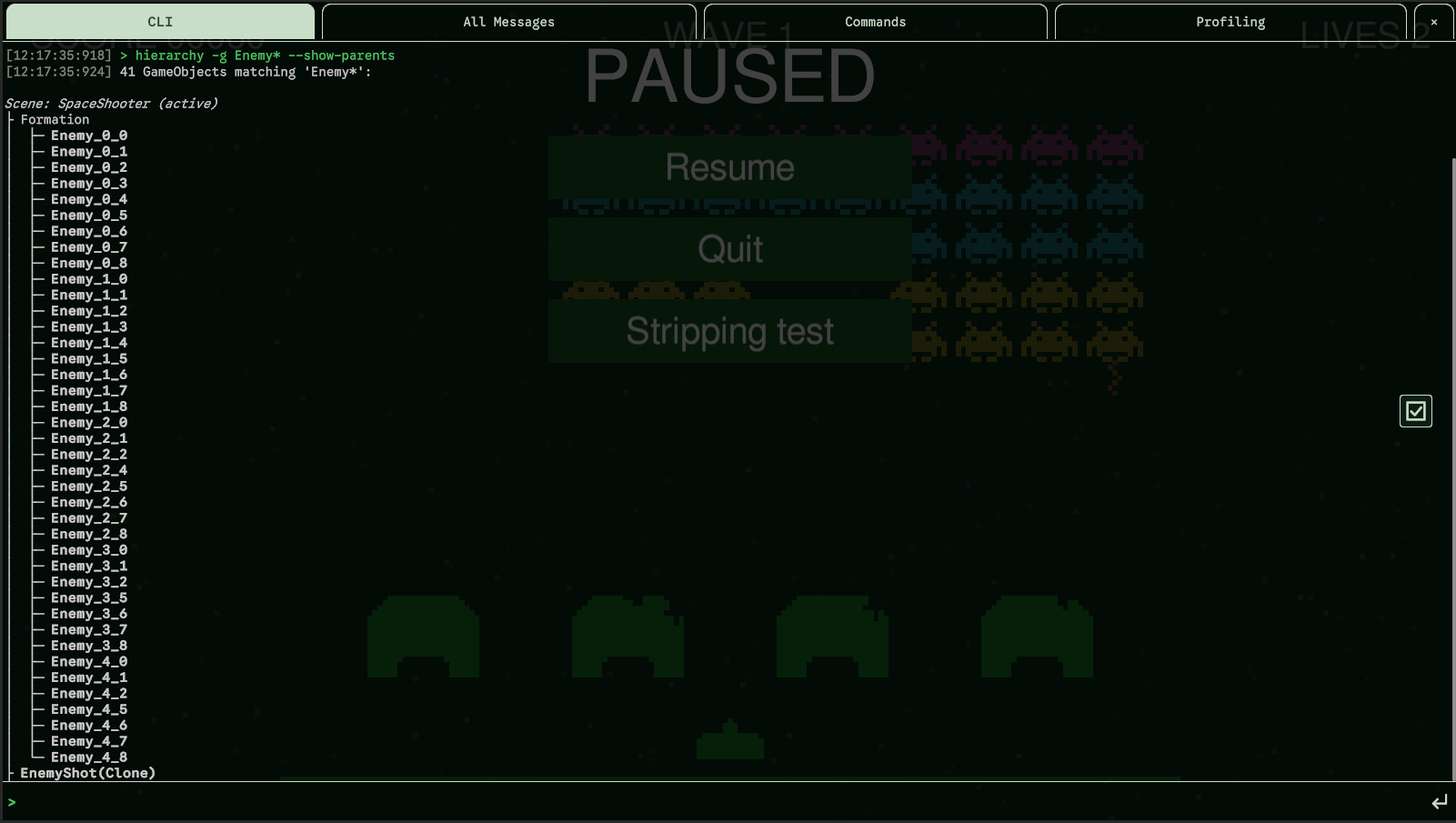
hierarchy shows the GameObjects of the loaded scenes (and of DontDestroyOnLoad) as a
tree, like the Hierarchy window, (inactive) after those that are inactive. It helps to see what a
build really has in its scenes.
> hierarchy -g Enemy*
> hierarchy -g "Main Camera"
> hierarchy -g Player --show-parents-gonly shows the GameObjects of that name, whatever its case, active or not, with where they are and their children.*stands for any characters:Enemy*,*Spawner.--show-parentsshows the GameObjects found, in bold, and their parents up to the roots, and nothing else.
sysinfo
sysinfo writes, in plain text, what a bug report asks for first. Run it before
send-log so the report says which device it comes from.