Copying and sending lines
Pick the lines that show a bug, then copy them or send them to your team.
When something goes wrong, you can pick the lines of the log that show it and copy them to the clipboard, to paste them in a bug tracker or a chat. With a webhook set, you can also send them to Slack, Discord or your own server, with a description of the problem.
Selecting lines
The CLI, All Messages and Commands tabs have a Select button, a checked box, at the middle right of the screen, with a green border.
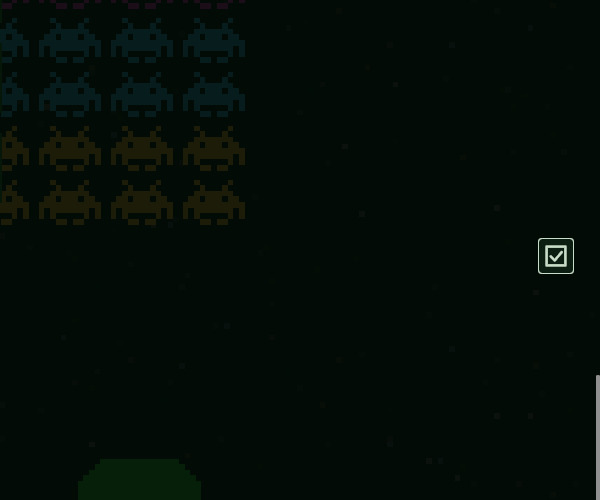
Press it: a box appears before every line, and the button gives way to a toolbox with, from top to bottom:
- Copy (two sheets): copy the checked lines to the clipboard;
- Send (an envelope): send them, only when a webhook URL is set;
- Back (an arrow): stop selecting.
Checking lines
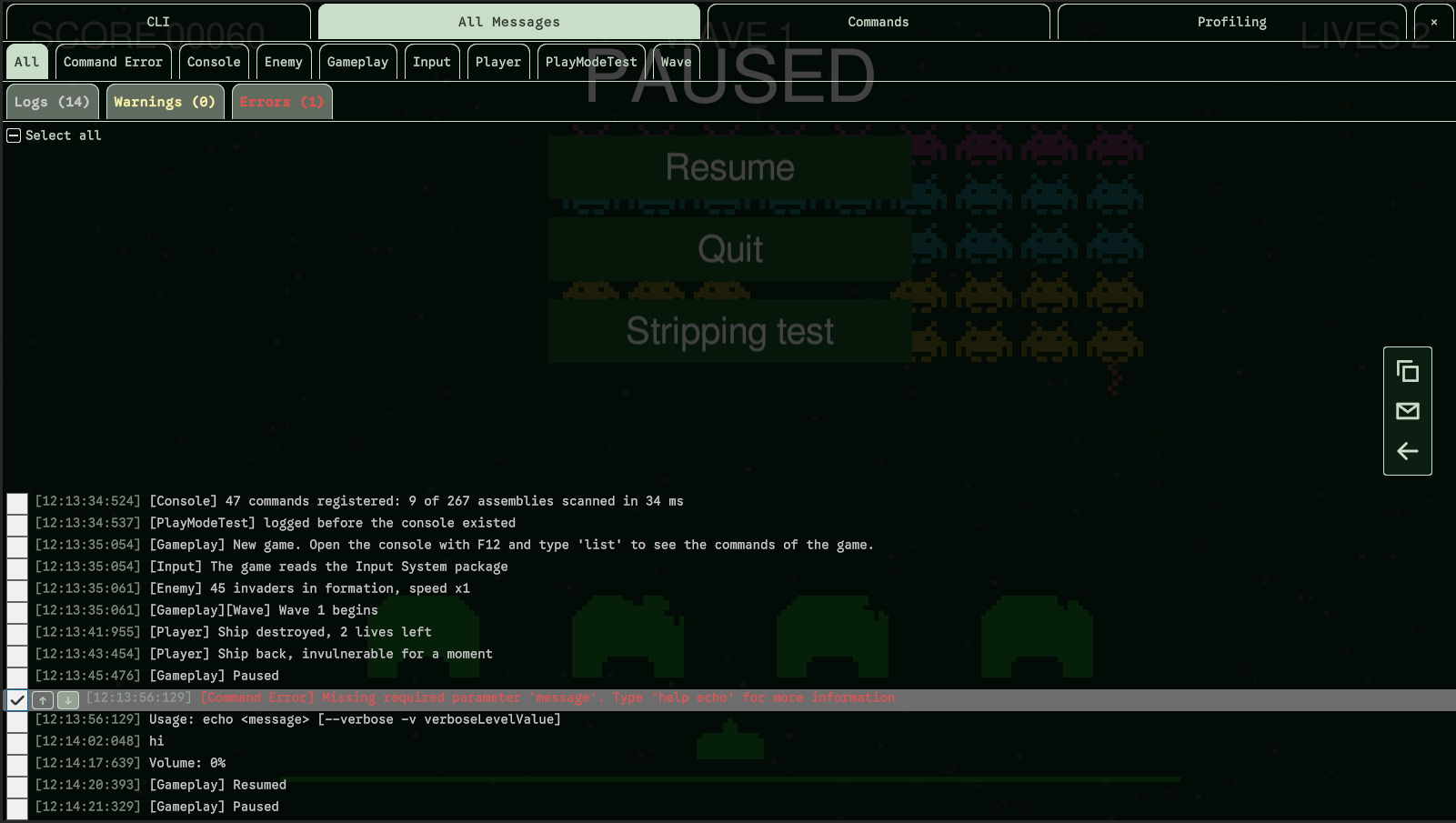
- Check or uncheck a line with its box, or by clicking its text.
- Select all, above the log, has three states: empty when no line shown is checked, filled when all are, a dash in between. A click checks every line shown, or unchecks them all if they all were.
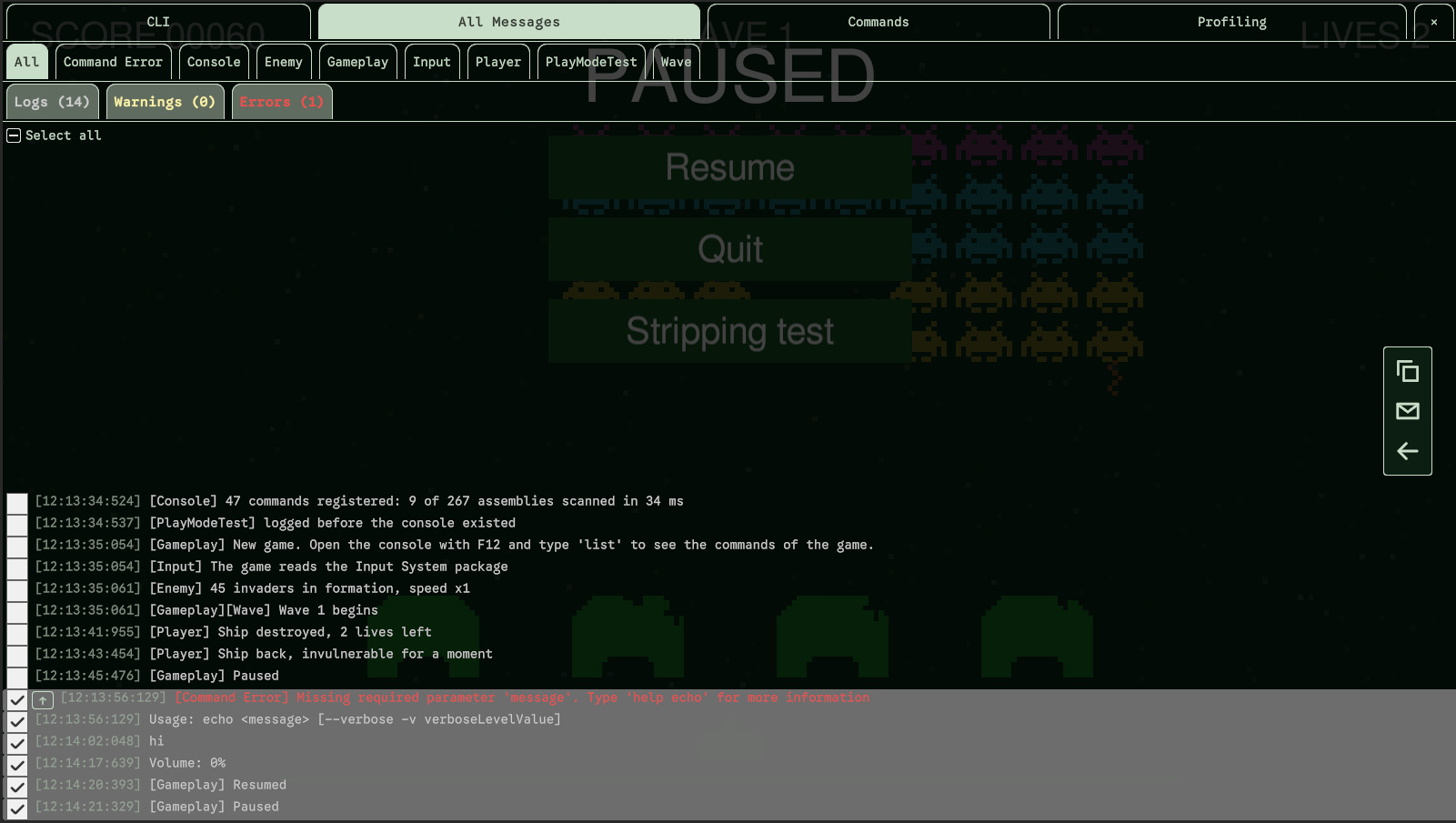
- Ranges: the line you checked or unchecked last shows two arrows, ↑ and ↓. They give every line above, or below, that line the same state as its box. Check a line and press ↓: it and every line after it are checked. Then uncheck a later line and press its ↓ to end the range there.
Good to know:
- The lines the filters or a tag tab hide are neither counted nor copied nor sent, even if checked. Showing them again finds them still checked.
- Lines that arrive while you select aren't checked. Lines that leave the log (see Max Log Lines) leave the selection.
- Each tab has its own selection: leave a tab and come back, it is as you left it.
clsempties the selection of the CLI and of the Commands tab along with their log.
Copy
Copy copies the checked lines to the clipboard, each with its time, as the log shows them. The lines stay checked, so you can send them afterwards. The button is disabled while no line is checked. Copying needs no webhook.
[14:03:22:517] [Net] Connection to lobby lost
[14:03:22:519] [Net] Retrying in 2 s
[14:03:24:533] NullReferenceException: Object reference not set to an instance of an object
Send
Send shows only when a webhook URL is set in the Webhook settings. It
asks for a message, then sends the checked lines. While they are on their way, the button is disabled, so a second
click can't send them twice. The console logs the outcome: Log sent successfully., or the error with
the reason the server gave. Once the server accepted the lines, the tab stops selecting; if the send failed, the
selection is kept so you can try again.
The message of a send
Before anything is sent, a popup says what will be (Sending 3 lines of All Messages) and lets you describe the problem: what you were doing, what you expected, what happened.
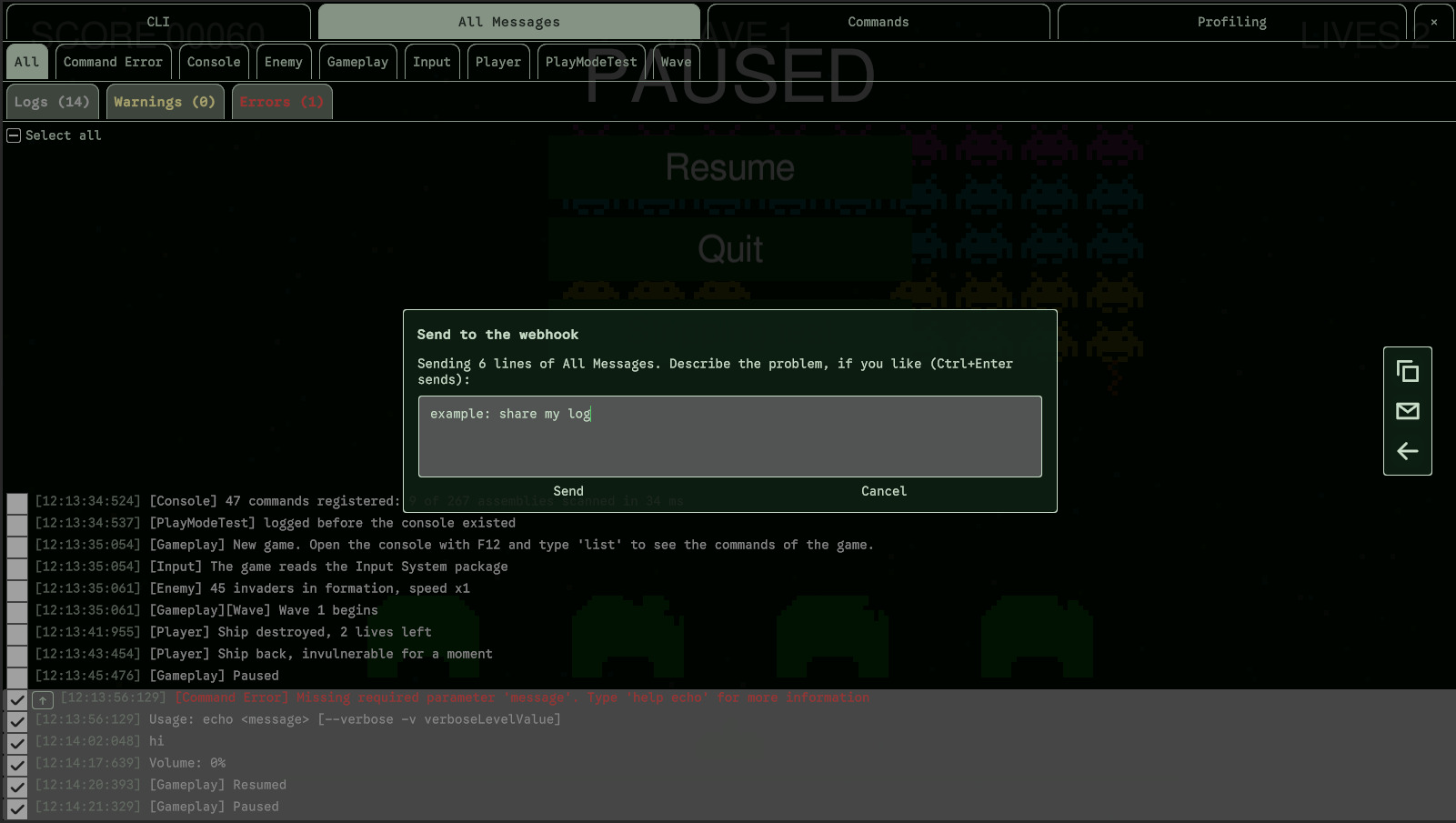
- The message is optional, 1,000 characters at most. Send with an empty field sends the log alone.
- Enter starts a new line, Ctrl + Enter (Cmd + Enter on macOS) sends, Esc or Cancel gives up: nothing is sent, and the lines stay checked. Closing the console gives up too.
- What is sent is the log as it was when you pressed Send: the game can keep logging while you write, the lines sent are the ones you chose.
Where the message ends up depends on the payload: see Webhook.
Without selecting: copy-log and send-log
Two commands take a whole log, with no selection. Every line the log holds is taken, whatever the filters hide:
| Command | Does what |
|---|---|
copy-log | Copies All Messages to the clipboard. -t cli copies the CLI instead, -l 200 only the newest 200 lines. |
send-log | Sends All Messages to the webhook, after the message popup. Same -t and -l; -m "text" gives the message and sends at once, without the popup. |
> copy-log -l 100
> send-log -t cli
> send-log --last 300 --message "Crash after loading level 3"
Your game can run send-log itself, for example from a Report a bug button, with
MirageConsole.Execute: see Scripting API.