The console window
Open the console, read its tabs, and type commands in the CLI.
Opening and closing
The console exists in the Editor and in Development builds (and in Release builds if you ask for it: see Builds). It creates itself when the game starts; there is nothing to add to your scenes.
| How | Opens | Closes |
|---|---|---|
| Keyboard, Legacy Input Manager | F12 (Toggle Key) | F12 or Esc (Close Key) |
| Keyboard or gamepad, Input System | <Keyboard>/f12 (Toggle Binding) | the toggle binding or <Keyboard>/escape (Close Binding) |
| Touch screen | Hold 3 fingers for 0.5 s (Open Method: Console Input) | The × button |
| Your own code | MirageConsole.Open() or Toggle() | MirageConsole.Close() or Toggle() |
| Mouse | The × button at the end of the tab bar |
All of these are in the Behavior page of the settings. The keyboard always opens the console, whatever the Open Method: that setting is only about touch screens.
On a touch screen
- Console Input (the default): hold 3 fingers on the screen for half a second. The number of fingers (1 to 4) and the time are in the settings. The short hold keeps a multi-touch game from opening the console by accident.
- Button: no gesture. Your game opens the console from a button of its own, with
MirageConsole.Open(). See An "Open console" button.
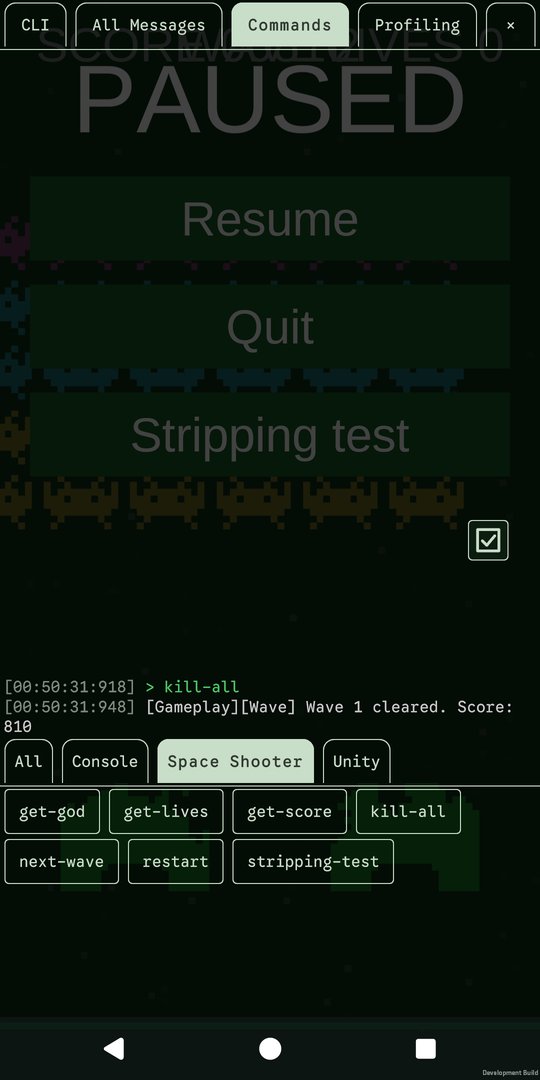
The window
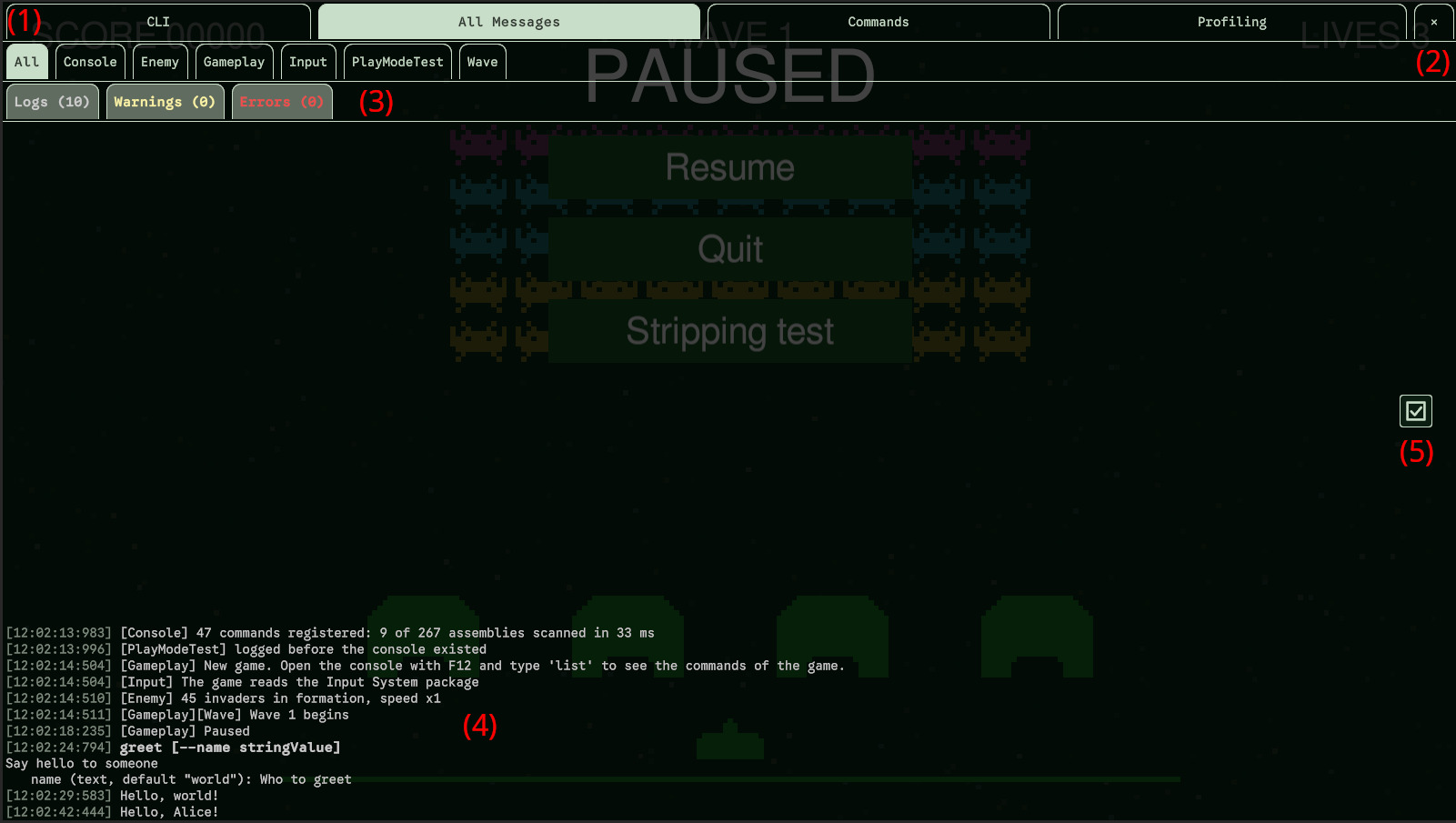
- The tab bar (1), at the top: one tab per view, in the order of the Tab Order setting (a tab can also be hidden).
- The Close button (2), the × at the top-right corner: it closes the console.
- The filter and tag tabs (3), in the All Messages tab: they filter the displayed logs by severity and by tag.
- The log (4) of the tab. Every line starts with the time it was logged, on the device's clock:
[14:03:22:517](hours, minutes, seconds, milliseconds). Messages are colored by severity: logs in light gray, warnings in pale yellow, errors in red. - The Select button (5) (a checked box), at the middle right: it lets you pick lines to copy or send. See Copying and sending lines.
A log scrolls with the mouse wheel, the scrollbar, or by dragging on a touch screen. It follows the newest line, until you scroll up to read something older: it then stays where you left it, and follows again once you are back at the bottom. Each log keeps its last 512 lines (Max Log Lines in the settings).
The CLI tab
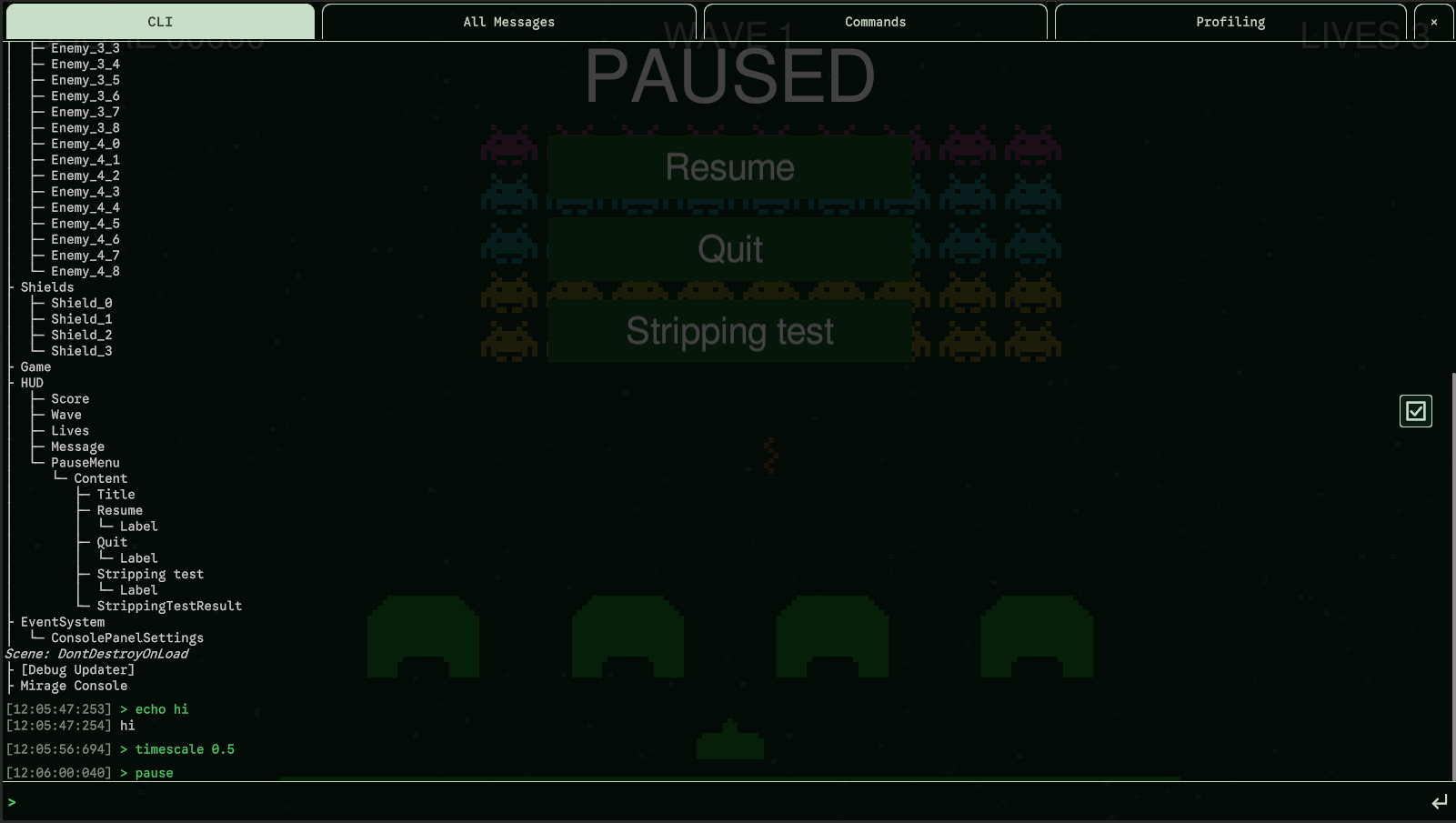
The CLI (command-line interface) is where you type commands. Type an entry in the input field at the bottom and press Enter, or the ↵ button to its right (on a touch screen, where the keyboard may have no Enter). The entry is echoed in green, as at a shell prompt, with what the command logs under it:
> spawn goblin --count 3
[Game] 3 goblins spawned
> echo "Wave 3 starts"
Wave 3 starts
The CLI log only holds what the commands log. Every message of the game is in All Messages.
An entry is echoed in the CLI, whoever runs it: you, a button of the Commands tab,
or your game with MirageConsole.Execute.
Keys of the input field
| Key | Action |
|---|---|
| Enter | Run the entry (the ↵ button to the right of the field does too) |
| ↑ / ↓ | Go through the entries you ran, oldest to newest. Going past the newest brings back what you were typing. The last 100 entries are kept until the game stops; the same entry run twice in a row is kept once. |
| Tab | Complete what is being typed; press it again for the next possibility |
| Shift + Tab | The same, backwards |
The history command lists the entries you ran, numbered; history --clear forgets them.
Tab completion
Tab completes:
- The name of a command or an alias:
he+ Tab giveshelp. With several possibilities, it completes what they all start with, and each further Tab goes to the next one. On an empty field, it goes through every command. - The name of an optional parameter, once the command is typed:
echo hi --v+ Tab givesecho hi --verbose. Parameters already typed aren't offered again. - The name of an object after
@, for the commands that run on objects:@Ene+ Tab gives@Enemy. A name with spaces is completed in quotes:@"Main Camera".
Values aren't completed, and nothing is completed inside quotes (except a quoted object name).
When an entry is wrong
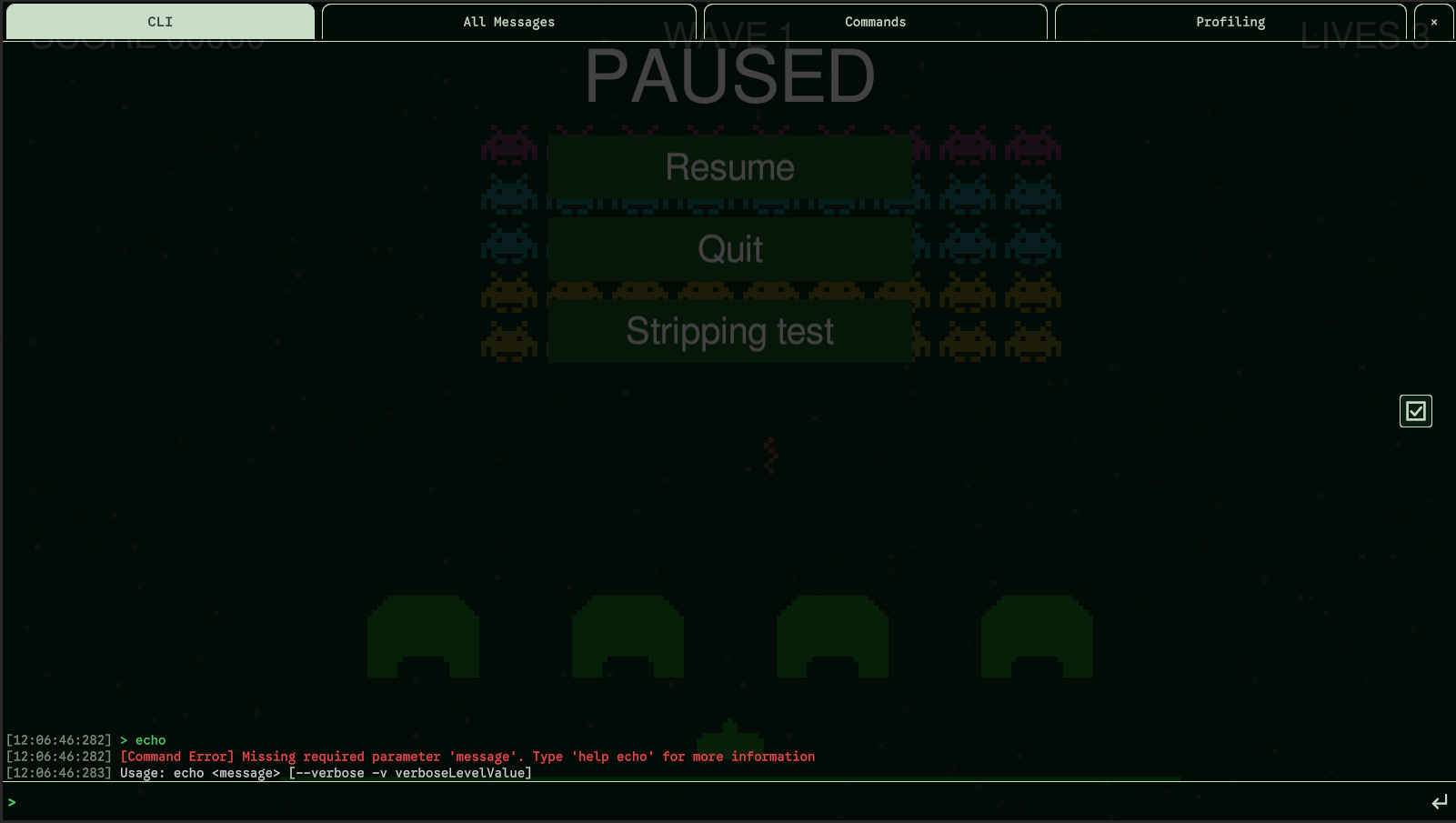
A mistyped entry doesn't run. The console says why, in red, followed by the syntax of the command:
> spawn
[Command Error] Missing required parameter 'prefab'. Type 'help spawn' for more information
Usage: spawn <prefab> [--count intValue] [--level -l qualityValue] [--boss -b]
This covers a missing or unknown parameter, a value of the wrong type, an extra argument, an unclosed quote... An unknown command gets no syntax (there is none to give). If the command itself throws an exception, the exception is logged, and the console keeps working.
Keeping your game from reacting
Unity doesn't let the console take the keyboard away from your game: typing W in the console can
still move your character. Use MirageConsole.IsOpen, or the Opened and Closed
events, to pause your own input while the console is open. See
Scripting API.